Flir Blackfly Bruksanvisning
Flir Inte kategoriserad Blackfly
Läs gratis den bruksanvisning för Flir Blackfly (2 sidor) i kategorin Inte kategoriserad. Guiden har ansetts hjälpsam av 28 personer och har ett genomsnittsbetyg på 4.8 stjärnor baserat på 9 recensioner. Har du en fråga om Flir Blackfly eller vill du ställa frågor till andra användare av produkten? Ställ en fråga
Sida 1/2
G
G
G
GGETTI
ETTI
ETTI
ETTIETTING
NG
NG
NGNG
STARTE
STARTE
STARTE
STARTESTARTED
D
D
DD
FLIR
BLACKFLY®
GigE
Vision
Will
Will
Will
WillWilly
y
y
yyo
o
o
oou
u
u
uur
r
r
rrsyste
syste
syste
systesystem
m
m
mmsup
sup
sup
supsuppo
po
po
popor
r
r
rrt
t
t
ttthe
the
the
thethec
c
c
cca
a
a
aamera?
mera?
mera?
mera?mera?
RecommendedSystemConfiguration:
nOS—Windows,Linux(32-and64-bit)
nCPU—IntelCore2Duo,orequivalent
nRAM—2GBRAM
nVideo—128MB
nPorts—Ethernet
nSoftware—MicrosoftVisualStudio2010(tocompileandrunexample
code)
D
D
D
DDo
o
o
ooy
y
y
yyo
o
o
oou
u
u
uuh
h
h
hhav
av
av
avave
e
e
eea
a
a
aad
d
d
ddo
o
o
oown
wn
wn
wnwnlo
lo
lo
loloads
ads
ads
adsadsa
a
a
aacc
cc
cc
cccco
o
o
oou
u
u
uunt?
nt?
nt?
nt?nt?
Ourdownloadspagehasmanyresourcestohelpyouoperateyourcamera
effectively,including:
nSoftware,includingDrivers(requiredforinstallation)
nFirmwareupdatesandreleasenotes
nDimensionaldrawingsandCADmodels
nDocumentation
Toaccessthedownloadsresourcesyoumusthaveadownloadsaccount.
1.Gotoourwebsite:www.flir.com/iis.
2.Intheupperrightcorner,clickRegister.
3.Completetheform,thenclickRegister.
Afteryousubmityourregistration,youwillreceiveanemailwithinstructionson
howtoactivateyouraccount.
D
D
D
DDo
o
o
ooy
y
y
yyo
o
o
oou
u
u
uuh
h
h
hhav
av
av
avave
e
e
eea
a
a
aall
ll
ll
llllthe
the
the
thethep
p
p
ppa
a
a
aar
r
r
rrts
ts
ts
tstsyou
you
you
youyounee
nee
nee
neeneed
d
d
dd?
?
?
??
Toinstallyourcamerayouwillneedthefollowingcomponents:
nEthernetcable
n6-pinGPIOcable
nPoweredEthernetswitchorEthernetpowerinjector(ifusingPoE)
nCS-mount(orC-mountwithadaptor)C-mountLens
nTripodadapter(optional)
nInterfacecard
FLIRsellsanumberoftheadditionalpartsrequiredforinstallation.Topurchase,
visitourAccessoriespage.
Ca
Ca
Ca
CaCamera
mera
mera
merameraCare
Care
Care
CareCare
Tocleantheimagingsurfaceofyourcamera,followthestepsoutlinedin
KnowledgeBaseArticle10243.
Extendedexposuretobrightsunlight,rain,dustyenvironments,etc.maycause
problemswiththeelectronicsandopticsofthesystem.
Avoidexcessiveshaking,dropping,ormishandlingofthedevice.
Warning!Donotopenthecamerahousing.DoingsovoidstheHardware
Warranty.
Avoidelectrostaticcharging.
I
I
I
IIns
ns
ns
nsnsta
ta
ta
tatallin
llin
llin
llinlling
g
g
ggY
Y
Y
YYo
o
o
oou
u
u
uur
r
r
rrI
I
I
IIn
n
n
nnterf
terf
terf
terfterfac
ac
ac
acace
e
e
eeC
C
C
CCa
a
a
aar
r
r
rrd
d
d
ddand
and
and
andandSo
So
So
SoSof
f
f
fftwa
twa
twa
twatwar
r
r
rre
e
e
ee
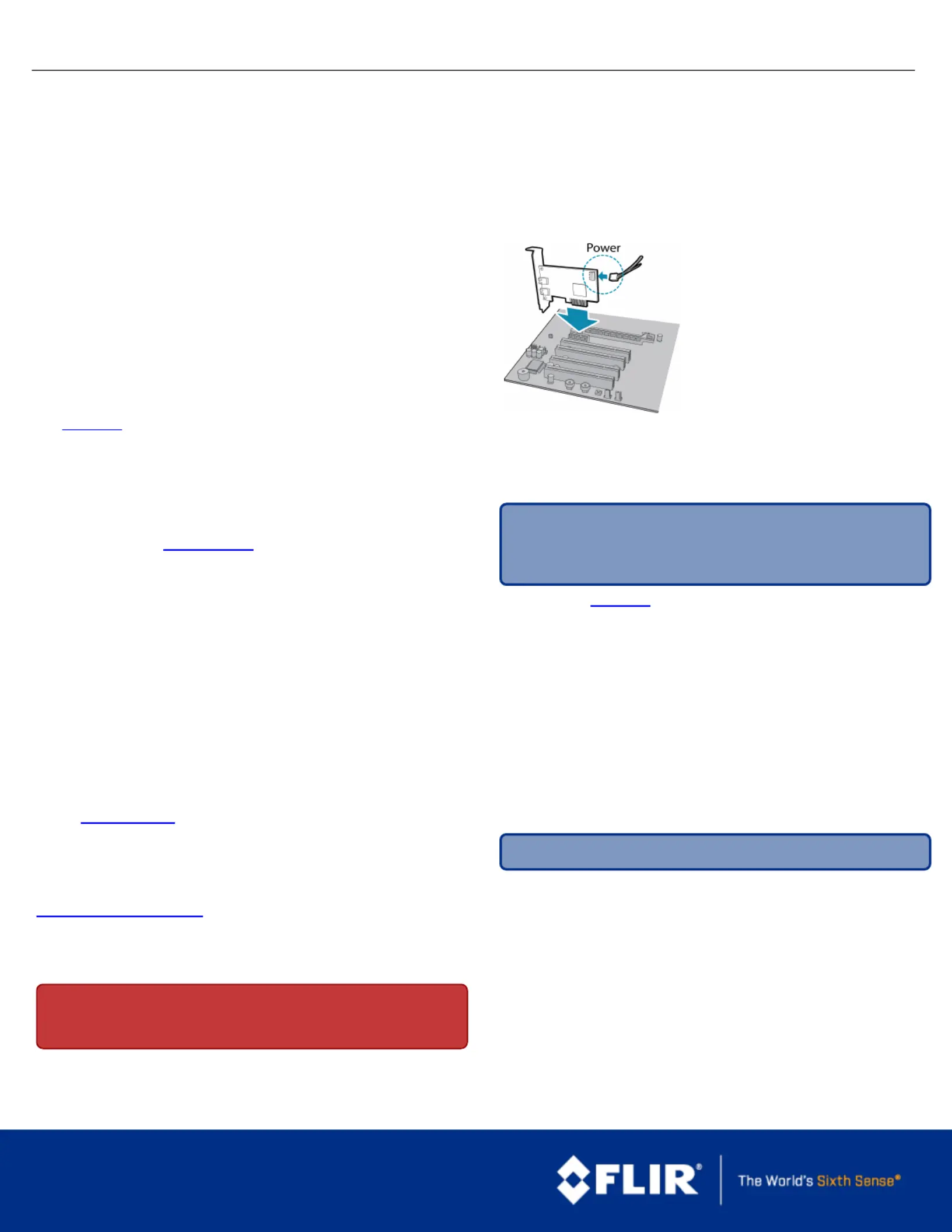
1.InstallyourInterfaceCard
Ensurethecardisinstalledperthe
manufacturer'sinstructions.
ConnecttheinternalIDEorSATApower
connectoronthecardtothecomputer
powersupply.
Alternatively,useyourPC'sbuilt-inhost
controller,ifequipped.
OpentheWindowsDeviceManager.Ensurethecardisproperlyinstalledunder
NetworkAdapters.Anexclamationpoint(!)nexttothecardindicatesthe
driverhasnotyetbeeninstalled.
2.InstalltheFlyCapture®Software
Note:ForexistinguserswhoalreadyhaveFlyCaptureinstalled,we
recommendensuringyouhavethelatestversionforoptimalperformance
ofyourcamera.IfyoudonotneedtoinstallFlyCapture,usethe
DriverControlGUItoinstallandenabledriversforyourcard.
a.Logintoourdownloadspage.
b.Selectyourandfromthedrop-downlistsandCameraOperatingSystem
clickthebutton.Search
c.ClickontheSoftwaresearchresultstoexpandthelist.
d.Clicktheappropriatelinktobeginthedownloadandinstallation.
Afterthedownloadiscomplete,theFlyCapturesetupwizardbegins.Ifthe
wizarddoesnotstartautomatically,double-clickthe.exefiletoopenit.Follow
thestepsineachsetupdialog.
3.EnabletheDriversforthecard
Duringinstallation,youarepromptedtoselectyourinterfacedriver.
IntheInterfaceDriverSelectiondialog,selecttheIwilluseGigEcameras.
ThisselectionensurestheImageFilterdriverisinstalledandenabled.
Note:GigEVisioncamerasonLinuxsystemsusenativeUbuntudrivers.
Touninstallorreconfigurethedriveratanytimeaftersetupiscomplete,usethe
DriverControlGUI.
4.ConfigureIPSettings
Afterinstallationiscomplete,theGigEConfiguratoropens.Thistoolallowsyou
toconfiguretheIPsettingsofthecameraandnetworkcard.
IftheGigEConfiguratordoesnotopenautomatically,openthetoolfromStart
Menu>FlyCaptureSDK>Utilities>GigEConfigurator.Ifpromptedtoenable
GigEenumeration,select.Yes
a.Inthe,selecttheLocalAreaConnectioncorrespondingtotheleftpane
networkinterfacecard(NIC)towhichthecameraisconnected.
b.Inthe,reviewmaximumtransmissionunit(MTU).Ifnot9000,rightpane
enablejumboframesontheNICbyclickingOpenNetworkConnections.
(WhilemostNICssupport9000-bytejumboframes,thisfeaturemaybe
disabledbydefault.)
1/26/2017
Namesandmarksappearingontheproductshereinareeither
registeredtrademarksortrademarksofFLIRSystems,Inc.
and/oritssubsidiaries.
©2012-2017FLIRIntegratedImagingSolutionsInc.Allrights
reserved.
Produktspecifikationer
| Varumärke: | Flir |
| Kategori: | Inte kategoriserad |
| Modell: | Blackfly |
Behöver du hjälp?
Om du behöver hjälp med Flir Blackfly ställ en fråga nedan och andra användare kommer att svara dig
Inte kategoriserad Flir Manualer

30 Januari 2025
23 September 2024
23 September 2024
18 September 2024
17 September 2024
16 September 2024
16 September 2024
16 September 2024
16 September 2024
16 September 2024
Inte kategoriserad Manualer
Nyaste Inte kategoriserad Manualer
9 April 2025
9 April 2025
9 April 2025
9 April 2025
9 April 2025
9 April 2025
9 April 2025
9 April 2025
9 April 2025
9 April 2025