StarTech.com PEXHDCAP4K Bruksanvisning
StarTech.com Inte kategoriserad PEXHDCAP4K
Läs gratis den bruksanvisning för StarTech.com PEXHDCAP4K (2 sidor) i kategorin Inte kategoriserad. Guiden har ansetts hjälpsam av 15 personer och har ett genomsnittsbetyg på 4.6 stjärnor baserat på 4 recensioner. Har du en fråga om StarTech.com PEXHDCAP4K eller vill du ställa frågor till andra användare av produkten? Ställ en fråga
Sida 1/2
Quick-Start Guide
To view manuals, FAQs, videos, drivers, downloads, technical drawings, and more, visit www.startech.com/support.
Manual Revision: May 20, 2021 8:27 PM
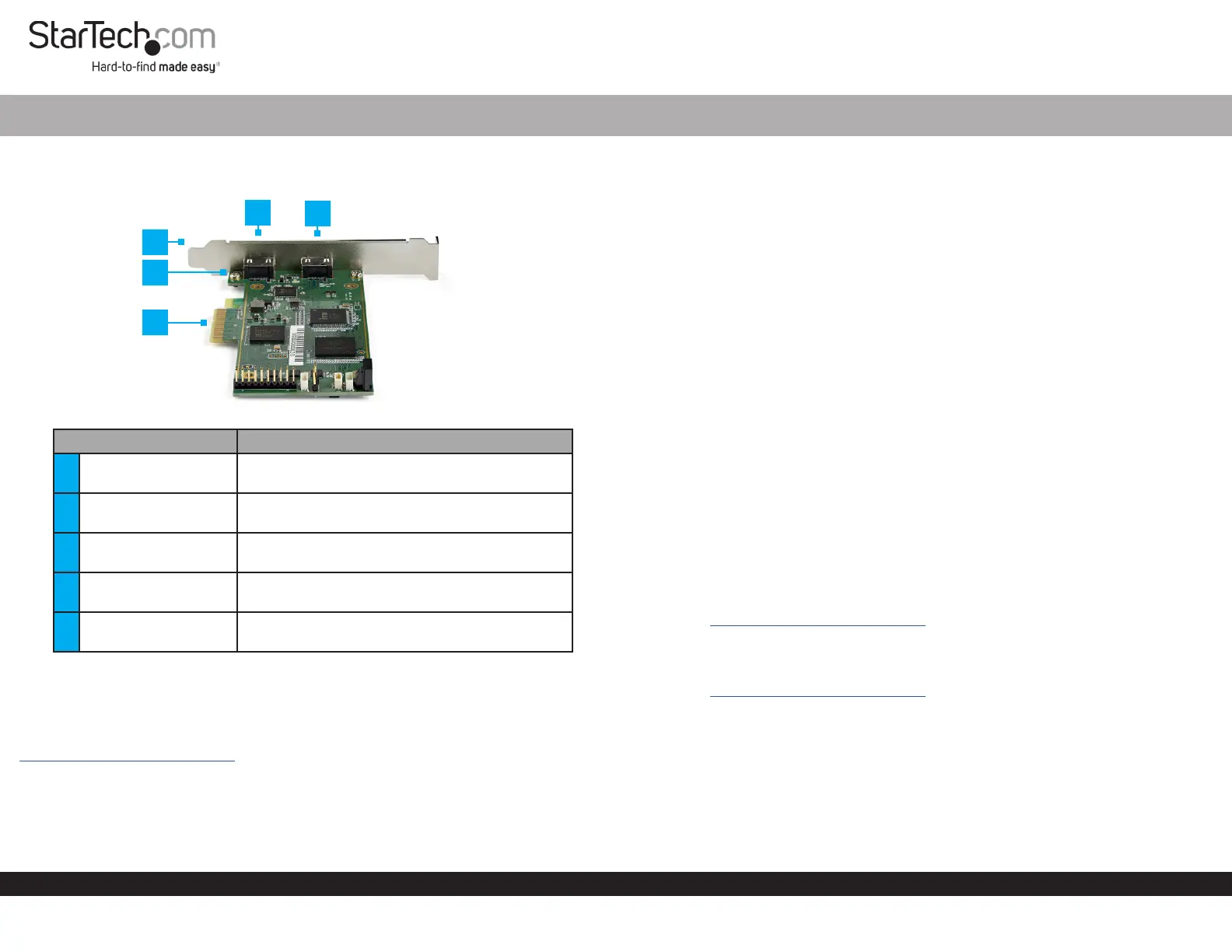
Product Diagram (PEXHDCAP4K)
ComponentFunction
1
Standard Prole
Bracket
• Used to securely attach the Video Capture
Card to the Host Computer.
2Bracket Screws
• Used to secure the Standard or Low Prole
Bracket to the Video Capture Card.
3PCIe Connector
• Used to connect the Video Capture Card to a
PCIe Port.
4HDMI Input Port
• Used to connect an HDMI Device to the Video
Capture Card.
5HDMI Output Port
• Used to connect an HDMI Display Device to
the Video Capture Card.
Product Information & Requirements
For the latest drivers, software, manuals, product information, technical specications,
and declarations of conformance, please visit:
www.startech.com/PEXHDCAP4K
• Tools:
• Phillips Head Screwdriver x 1
• Operating System:
• Windows 10, 8.1, 8, and 7
PCI Express Video Capture Card | HDMI | 4K 60Hz | 60fps
Installation
Warning! Video Capture Cards, can be severely damaged by static electricity. Be sure
that you are properly grounded before opening your computer case or touching your
card. Be careful to handle the card by its edges and not the gold connectors.
1. Turn o the Host Computer and all connected Peripheral Devices (e.g. printer,
external hard drives, etc.).
2. Unplug the Power Cable from the Host Computer.
3. Remove the cover from the Host Computer’s Case.
Note: Refer to the documentation that came with your computer for further
information on how to properly remove the computer case.
4. Locate a PCIe Slot and remove the Metal Cover Plate.
Note: Refer to the documentation that came with your computer for further
information on how to properly remove the metal cover plate.
5. Gently insert the PCIe Connector on the Video Capture Card into the PCI Express
Slot.
6. Using the screws removed from the Metal Cover Plate and a Phillips Head
Screwdriver, secure the Video Capture Card to the rear of the computer case.
7. Place the cover back over the computer case.
8. Reconnect the Power Cable and Peripheral Devices to the Host Computer and
power the Host Computer On.
Driver Installation
Navigate to www.startech.com/PEXHDCAP4K and select the Drivers/Downloads tab
to locate and download the latest Driver.
Software Installation
Navigate to www.startech.com/PEXHDCAP4K and select the Drivers/Downloads
tab to locate and download the latest Windows Video Capture Software and the
accompanying Software User Guide.
4
1
3
2
5
Produktspecifikationer
| Varumärke: | StarTech.com |
| Kategori: | Inte kategoriserad |
| Modell: | PEXHDCAP4K |
| Bredd: | 69 mm |
| Djup: | 130 mm |
| Höjd: | 38 mm |
| Förpackningens bredd: | 144 mm |
| Antal HDMI-portar: | 2 |
| HDCP: | Ja |
| HDR-stöd: | Ja |
| HDMI-version: | 2.0 |
| Snabbinstallationsguide: | Ja |
| Värdgränssnitt: | PCIe |
| Analogt signalformatsystem: | NTSC, PAL, PAL 60, PAL M |
| Låddjup: | 207 mm |
| Vikt inkl. förpackning: | 230 g |
| Ytterförpackningens höjd: | 490 mm |
| Produkter per ytterförpackning: | 35 styck |
| Ytterförpackningens längd: | 410 mm |
| Ytterförpackningens bredd: | 400 mm |
| Temperatur vid drift: | 0 - 40 ° C |
| Temperaturintervall (förvaring): | -5 - 40 ° C |
| Intervall för relativ operativ luftfuktighet: | 20 - 80 % |
| Hållbarhetscertifiering: | CE, RoHS |
| Komprimeringsformat: | H.264, MPEG4 |
| Max uppdateringsfrekvens: | 60 hz |
| HDR-teknik (High Dynamic Range): | High Dynamic Range 10 (HDR10) |
| Bildupplösning vid videoinspelning (max): | 4096 x 2160 pixlar |
| Intern: | Ja |
| Som stöds bildformat: | 4:3, 16:9 |
| Utgränssnittet: | HDMI |
| Täckplåt, låg profil: | Ja |
Behöver du hjälp?
Om du behöver hjälp med StarTech.com PEXHDCAP4K ställ en fråga nedan och andra användare kommer att svara dig
Inte kategoriserad StarTech.com Manualer

18 Mars 2025
18 Mars 2025
3 Januari 2025
2 Januari 2025
2 Januari 2025
2 Januari 2025
2 Januari 2025
2 Januari 2025
2 Januari 2025
2 Januari 2025
Inte kategoriserad Manualer
Nyaste Inte kategoriserad Manualer
9 April 2025
9 April 2025
9 April 2025
9 April 2025
9 April 2025
9 April 2025
9 April 2025
9 April 2025
9 April 2025
9 April 2025